
Online Split Screen Video Player
A browser-based split screen video player for side-by-side video analysis. Compare two videos simultaneously without installing any software.
SYSTEM FEATURES
Explore the features available in the Split Screen Video Player.
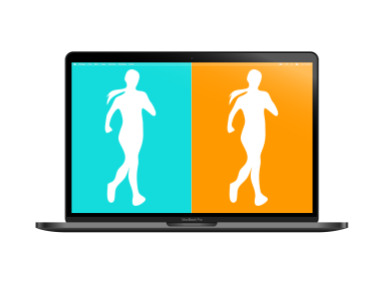
Side-by-Side Playback
Play two videos side by side using shared playback controls. Compare movements from different videos to analyze technique and improve your form.

YouTube Video Support
Load YouTube videos simply by entering their URLs. You can also load videos from your device and compare them side by side.

Frame-by-Frame Playback
Advance both videos frame by frame using shared controls. Compare key moments in detail to identify subtle differences in movement.
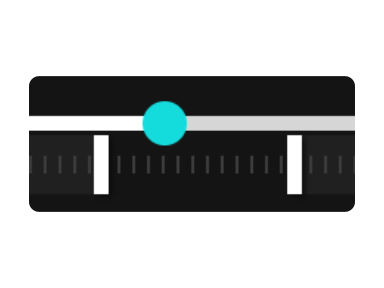
Loop Playback
Set a playback range for each video and repeat the selected section in a loop. Focus on specific movements without manually rewinding.

Playback Speed Control
Adjust the playback speed of each video independently. Choose from 1x, 0.5x, 0.25x, and 0.1x playback speeds for detailed analysis.
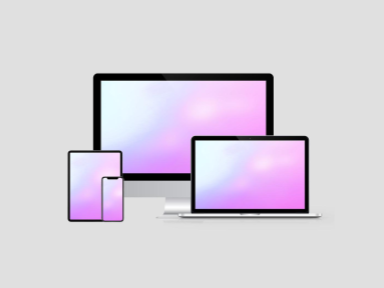
Multi-Device Support
Use the player on PCs, smartphones, and tablets. A larger display, such as a PC screen, is recommended for more detailed video analysis.
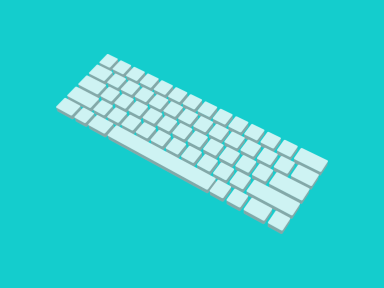
Keyboard Controls
On a PC, use the Arrow keys for frame-by-frame navigation, Ctrl + Arrow keys to skip forward or backward 3 seconds, and the Spacebar to play or pause.

Privacy Protection
Local videos are processed in your browser and are not uploaded to our servers.

Full-Screen Playback
Display either video in full screen for a closer look. Analyze movements in greater detail on a larger viewing area.

Free to Use
This system and its all functionalities are available for free.
FAQ
What can this system do?
This system allows you to play various video formats, including YouTube videos, side by side in your web browser. You can use it to compare your movements with those of others.
What video formats are supported?
Please refer to the Video Compatibility section for information on supported video formats.
How do I hide YouTube's related videos?
YouTube displays related videos according to its own specifications, so they cannot be completely hidden. To close them, click the close button that appears in the upper-right corner of the related videos. To prevent accidental interaction with the video, this system places a transparent layer over it by default. To remove this layer, open the settings for the video by clicking the three-line menu icon and turn off Video Mask.
How is my data protected?
User activity is securely managed and is not shared with third parties.
Are smartphones supported?
Yes. The system works on PCs, smartphones, and tablets, with no application installation required. Please note, however, that behavior may vary depending on the web browser you use.
Is it free to use?
Yes. The entire system and all of its features are available free of charge.